Installation
Install the UPM package in Unity:
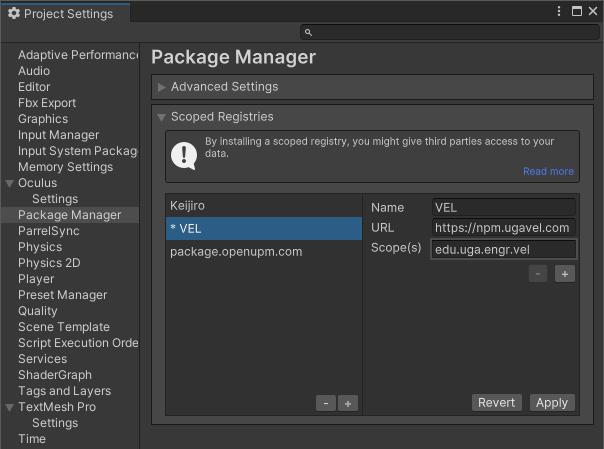
Using the scoped registry allows you to easily install a specific version of the package by using the Version History tab.
- In Unity, go to
Edit->Project Settings...->Package Manager - Under "Scoped Registries" click the + icon
- Add the following details, then click Apply
- Name:
VEL(or anything you want) - URL:
https://npm.ugavel.com - Scope(s):
edu.uga.engr.vel
- Name:
- Install the package:
- In the package manager, select
My Registriesfrom the dropdown - Install the
VEL-Connectpackage.
- In the package manager, select
- Open the Package Manager in Unity with
Window->Package Manager - Add the local package:
+->Add package from git URL...- Set the path to
https://github.com/velaboratory/VEL-Connect
To update the package, click the Update button in the Package Manager, or delete the packages-lock.json file.
- Clone the repository on your computer:
git clone git@github.com:velaboratory/VEL-Connect.git - Open the Package Manager in Unity with
Window->Package Manager - Add the local package:
+->Add package from disk...- Set the path to
VEL-Connect/package.jsonon your hard drive.
To update the package, use git pull in the VEL-Connect folder.
Then check out the quick start guide.